Guide
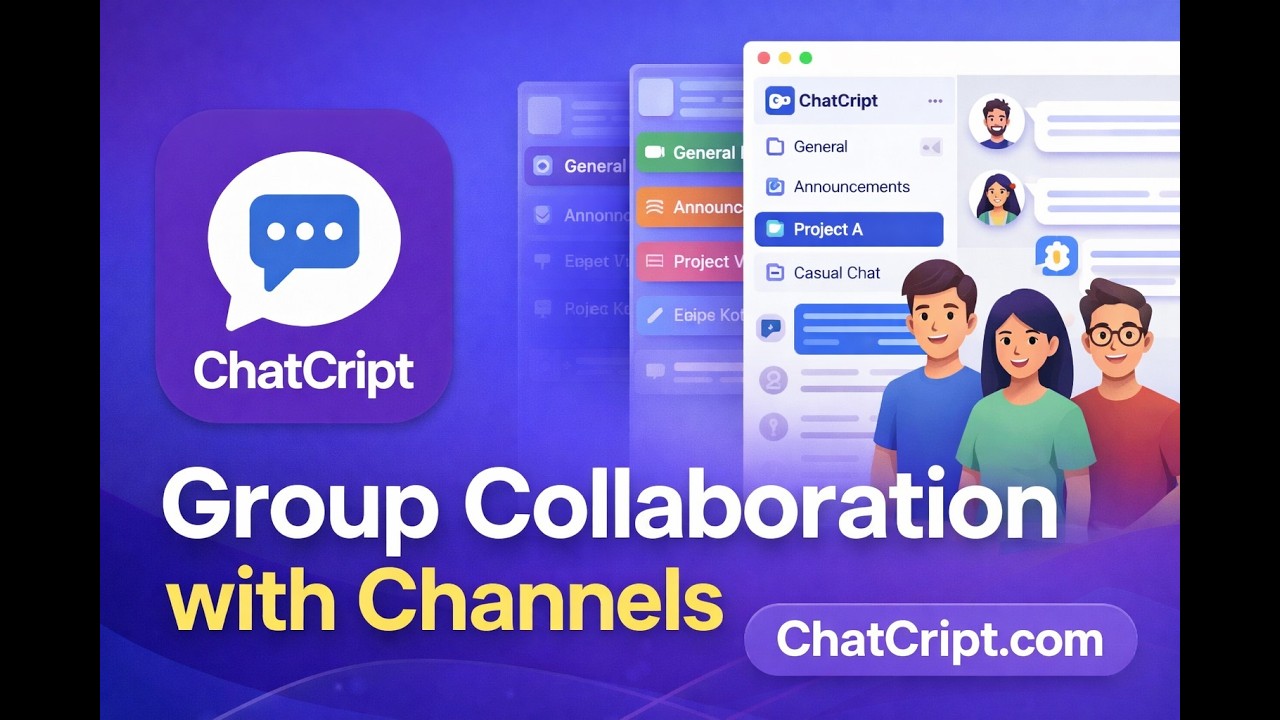
Build Your Community with Groups & Channels
ChatCript's group system goes beyond simple group chats. It's a fully structured ecosystem: Groups → Channels → Posts & Media. Think of it like having your own private community platform.
Understanding the Structure
- Group — The top-level container. It has a name, description, photo, members, and a group chat.
- Channels — Topic-based spaces inside a group. Each channel can have its own posts, media, and discussions.
- Posts — Content within channels: text, photos, videos, polls, and action items with reminders.
Creating a Group
Step 1: Tap the Groups tab and then the "+" button.
Step 2: Enter a group name and description. Use "Improve with AI" to polish your description.
Step 3: Select a group type (Family, Work, Community, etc.) and set privacy.
Step 4: Add members from your friend list and tap Create.
Creating Channels Inside a Group
Step 1: Open a group and tap the "+" button or "Create Channel".
Step 2: Give the channel a name and optional description.
Step 3: Add a channel photo if desired, then tap Create.
What You Can Do in Groups
- Real-time group chat with all members.
- Create up to 20 channels per group for different topics.
- Post text, photos, videos, and polls in channels.
- Add action items with reminders to group posts.
- Share documents and HD photos.
- Use AI summaries to catch up on missed conversations.
- Broadcast private 1:1 messages to selected group members.
- Share live location with group members.
Tip: Use channels to keep conversations organised. For example, a family group might have channels for "Events", "Photos", and "Recipes".